Our ByteScout SDK products are sunsetting as we focus on expanding new solutions.
Learn More
Important Update
ByteScout SDK Sunsetting Notice
Our ByteScout SDK products are sunsetting as we focus on our new & improved solutions.Thank you for being part of our journey, and we look forward to supporting you in this next chapter!
We are no longer reviewing available options. We’re in search of the best PDF column extraction and we think you have it. I’ve spent a lot of time looking and testing.
PDF Extractor SDKis the set of advanced PDF extractors and image extraction tools for developers.
Easily set up a robust PDF extractor in your app and extract tables, text, and other data automatically.
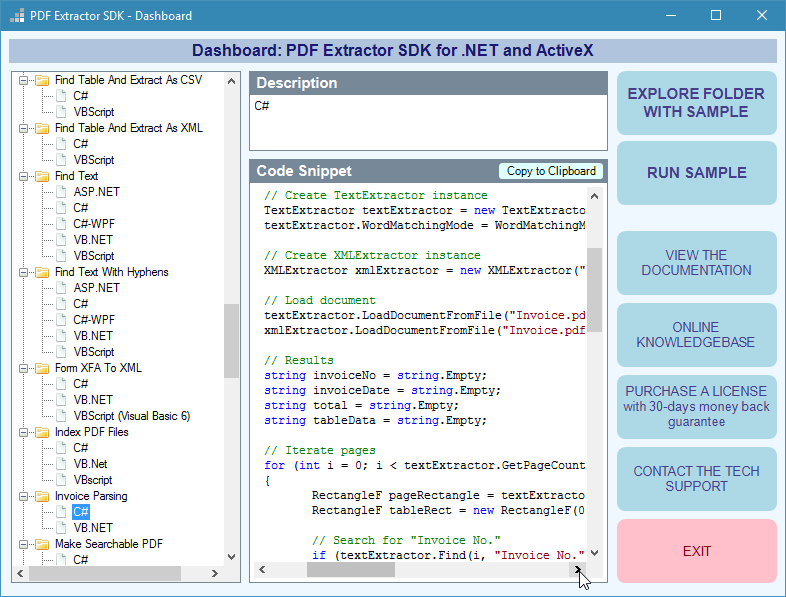
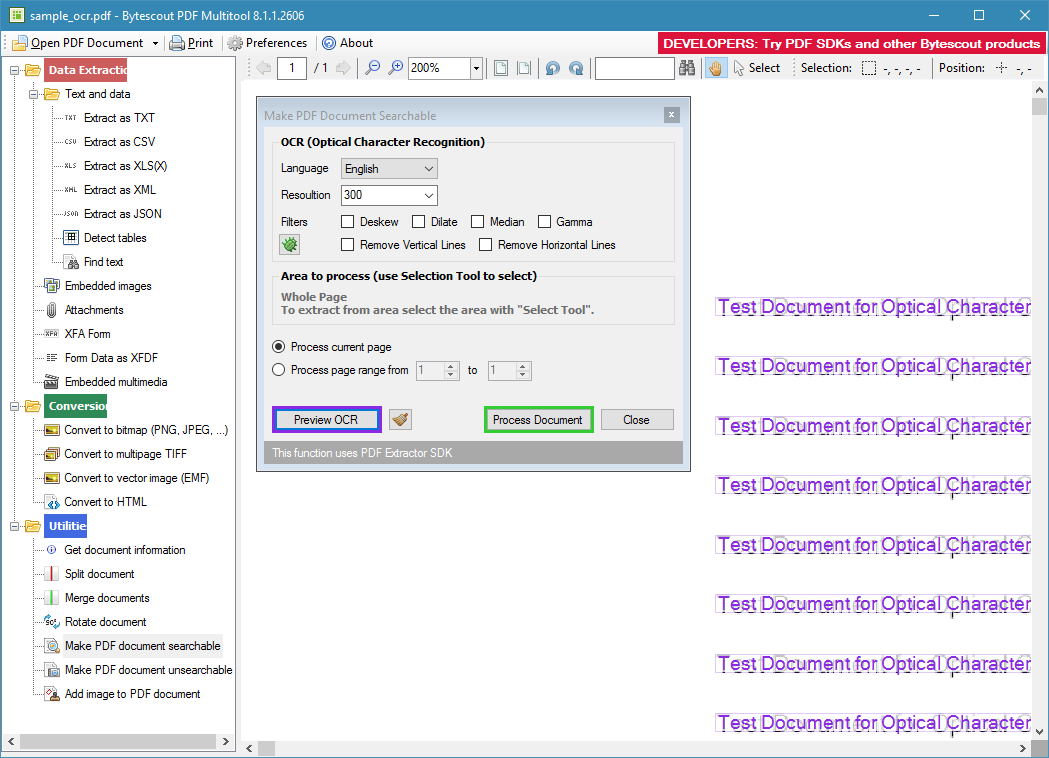
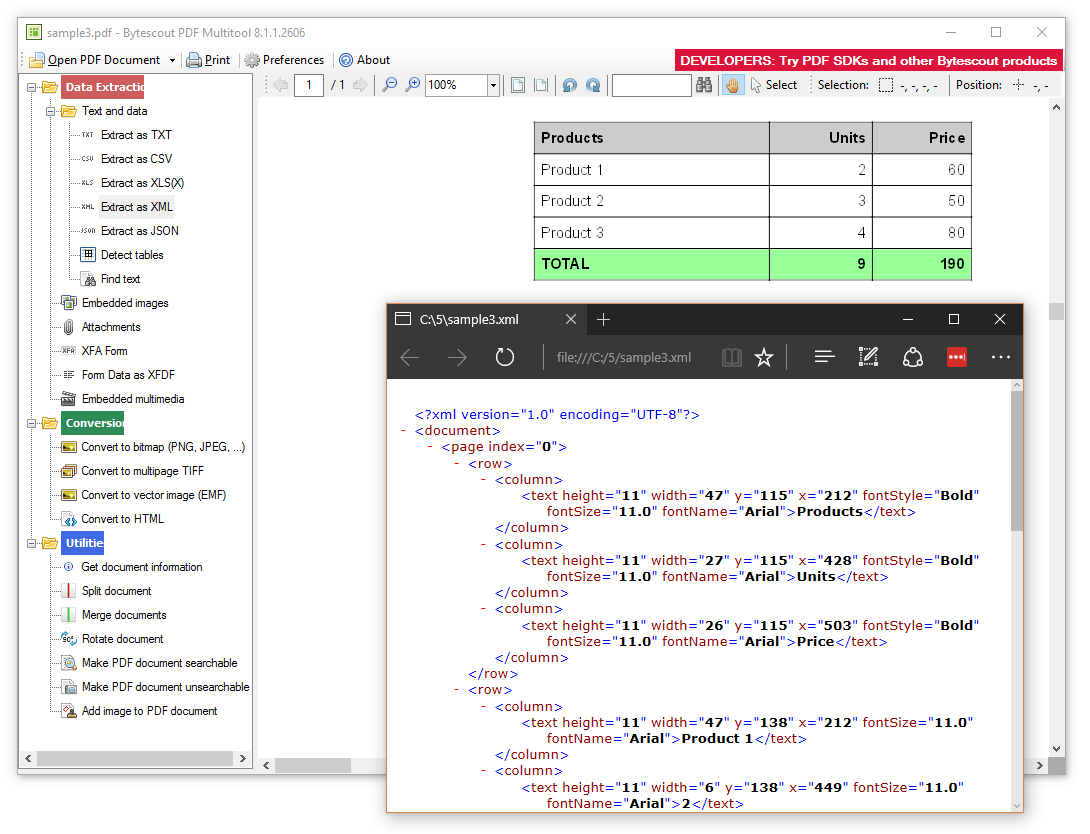
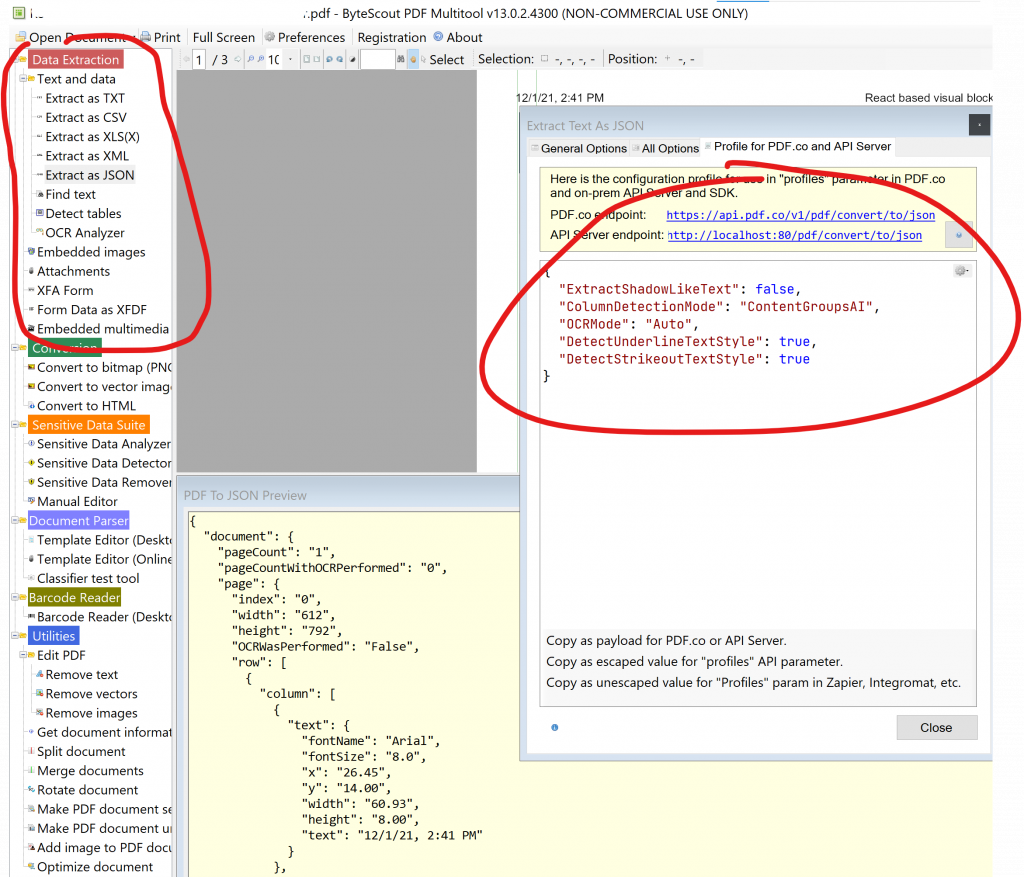
PDF extractor powered demo app
Key Benefits
Process Millions of PDF Documents: PDF Extractor’s high-performance engine works flawlessly under pressure, making it an ideal solution for processing large quantities of PDF reports, indexing large PDF libraries, and more
Easy to use and implement: No matter how complex your PDF document’s structure is, you’ll find that PDF Extractor is easy to use and integrate into your existing systems seamlessly
No more extraction errors: PDF Extractor can process damaged files that have a complex structure, can repair malformed text that otherwise would need to be processed manually
Multiple language support: PDF Extractor supports documents with mixed languages and Unicode languages.
Works offline, no Internet required;
10+ YEARS of PDF Extractor technology and expertise;
Provides a faster time to market than most similar open-source tools; Battle-tested on large commercial projects in production; Support for experts is included.
Advanced OCR with support for non-Latin languages, Unicode support, mixed languages support;
Works in .NET and ASP.NET support (.NET 2.0, 4.5 and later, .Net Core Framework on Windows);
Can be used from scripting and legacy programming languages like ASP, VBScript, VB6 (via ActiveX-like interface);
Full set of advanced tools: turn scans into searchable PDF, split and merge PDF, remove text, analyze, find, detect and remove sensitive data and personally identifiable information (PII) from PDF and scanned documents;
Uses automatic and AI-powered OCR (text recognition from image) for PDF to text, PDF to JSON/XML/XLSX other PDF extractors to text;
OCR (image to text) supports English, German, Spanish, Japanese, Korean, and many other languages. Supports mixed languages OCR (e.g. English + Spanish on the same page)
The first thing to notice is the developer-friendly interface of all our tools. It helps you to operate a toolkit easily and to understand the tool even if you are a beginner in programming.
Next and the most powerful feature of our products is a mix of sophisticated technologies we use when developing the tools. We run experiments in order to deliver a better solution.
We analyze the needs of our users and try to adapt SDKs and API to meet your requirements.
You are welcome to use ByteScout customer support. It has a personalized approach and is great and helpful as noticed by our customers.
It is an advanced guide for developers of any level. You can watch it here. You will learn about the main SDK features like extracting text from PDF and extracting tables into CSV and XML, regular expression search, working with damaged texts, PDF documents merging and splitting as well as other things.
If you need a powerful tool to extract text or raw images from PDF in C#, then check our updated software on ByteScout.
All of the APIs included are easily accessible and optimized to developers with any level of experience and knowledge about electronic documents. You can try the Trial version to extract data from PDF with C#, the extraction process is easy and fascinating.
The product includes the image to text functionality (OCR) that works for English, German, Spanish, French, and many others including Asian languages. For noisy images or scanned documents, the product includes special built-in filters to clean them.
PDF Extractor SDK is a fully functional suite that includes functions to extract text, images, tables, text from images, raw images, forms, and field data. We have comprehensive documentation and tutorial set to make it easy for you to extract text from PDF with .NET.
PDF Extractor SDK is also capable of extracting and repairing damaged text from PDF files. Special functions for text reconstruction are powered by the included images to the text engine. Text repair works for English, German, Spanish and other languages.
It is easy to extract tables from PDF using PDF Extractor SDK with the automated table detector. Tables can be automatically selected and extracted as CSV, XML, or JSON data.
It is possible to operate with other ByteScout products, PDF to HTML in C# may be useful if you need to convert your docs fast. For a complete package with many functions, the best option is PDF API found on ByteScout. You can also generate PDFs easily using our generator for Javascript. Rendering C# PDF to image can be done via a specific API. Extensive viewing options of your processed documents can be performed via C# PDF viewer.



 Important Update