
Screenshot of the sample application – code 39 and Aztec barcodes are drawn on the form surface: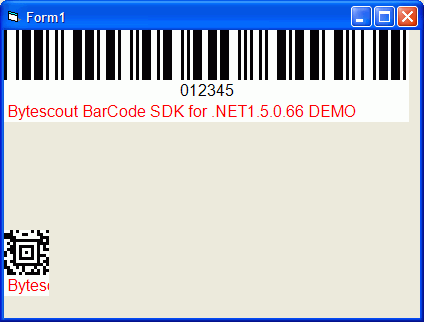
This sample code shows how to use Barcode SDK in Visual Basic 6 application to draw barcode image on a form:
Form1.frm content:
Private Sub Form_Load()
‘ IMPORTANT NOTE: you need to have .NET Framework 1.10 installed to use BarCode SDK from Visual Basic
‘ to download and install .NET Framework 1.10 please use this link: http://www.microsoft.com/downloads/details.aspx?familyid=262D25E3-F589-4842-8157-034D1E7CF3A3
‘ IMPORTANT NOTE for this sample: click on Form1 in the Design mode and set “AutoRedraw” property to True to make all drawings visible
Set bc = CreateObject(“Bytescout.BarCode.Barcode”)
‘ set symbology type
bc.Symbology = 0 ‘ 0 = Code39
‘ set value to encode
bc.Value = “012345”
‘ draw code 39 barcode to the form at (0,0)
bc.DrawHDC hDC, 0, 0
‘ now drawing 2D Aztec barcode
‘ set symbology type
bc.Symbology = 17 ‘ 17 = Aztec
‘ set value to encode
bc.Value = “012345”
‘ draw 2D Aztec barcode to the form at (0,200)
bc.DrawHDC hDC, 0, 200
Set bc = Nothing
End Sub
You can also print barcodes by drawing them on Printer.hDC (using built-in Printer object in VB6): see this sample for more information