
In this example, ByteScout PDF SDK is used to add text to the first page of the existing PDF document (HelloWorld.pdf) and save the new document as HelloWorldAgain.pdf
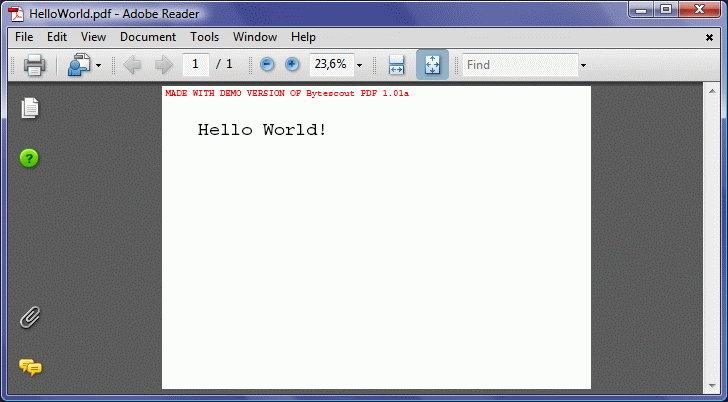

Program.vb:
VB
'*******************************************************************
'       ByteScout PDF SDK
'
'       Copyright © 2016 Bytescout, https://bytescout.com
'       ALL RIGHTS RESERVED
'
'*******************************************************************

Imports Bytescout.PDF

'''


<summary>
''' This example demonstrates how to load and modify an existing document.
''' </summary>


Class Program

    Shared Sub Main()

        ' Create new Document object
        Dim pdfDocument = New Document()
        pdfDocument.RegistrationName = "demo"
		pdfDocument.RegistrationKey = "demo"

        '  Load existing document
        pdfDocument.Load("sample.pdf")

        ' Add new page to loaded document
        Dim page As New Page(PaperFormat.A4)
        Dim font As New Font(StandardFonts.Times, 24)
        Dim brush As New SolidBrush()
        page.Canvas.DrawString("New Page", font, brush, 20, 20)
        pdfDocument.Pages.Add(page)

        ' Save document to file
        pdfDocument.Save("result.pdf")

        ' Cleanup
		pdfDocument.Dispose()

        ' Open document in default PDF viewer app
        Process.Start("result.pdf")

    End Sub

End Class
Program.cs:
C#
//*******************************************************************
//       ByteScout PDF SDK
//
//       Copyright © 2016 ByteScout - https://bytescout.com
//       ALL RIGHTS RESERVED
//
//*******************************************************************

using System.Diagnostics;
using Bytescout.PDF;

namespace LoadDocument
{
	///


<summary>
	/// This example demonstrates how to load and modify an existing document.
	/// </summary>


	class Program
	{
		static void Main()
		{
			// Create new Document object
			Document pdfDocument = new Document();
			pdfDocument.RegistrationName = "demo";
			pdfDocument.RegistrationKey = "demo";

			// Load existing document
			pdfDocument.Load("sample.pdf");

			// Add new page to loaded document
			Page page = new Page(PaperFormat.A4);
			Font font = new Font(StandardFonts.Times, 24);
			Brush brush = new SolidBrush();
			page.Canvas.DrawString("New Page", font, brush, 20, 20);
			pdfDocument.Pages.Add(page);

			// Save document to file
			pdfDocument.Save("result.pdf");

			// Cleanup
			pdfDocument.Dispose();

			// Open document in default PDF viewer app
			Process.Start("result.pdf");
		}
	}
}
Additionally, get a step-by-step guide on how to Load PDF and Draw Text String.
ByteScout PDF SDK can create and edit PDF files in C# and VB.NET. It makes easy to create and modify PDF files using customizable code in no time. Moreover, it supports PDF to other format conversions, auto font embedding, Security options, fax formats support, annotation, multimedia object support, add a digital signature, watermarking, form fields and flexible for new updates.
This document is prepared to help you to use PDF SDK and add features in your code. It consumes a lot of time to write and test new code as you may merely take the VB.NET code from ByteScout PDF SDK for load existing PDF file and simply use it in your application. Typically coding requires multiple stages of software development but here you will just select a snippet of code and test with your data in your production environment.
Steps to load and modify existing PDF file using ByteScout PDF SDK:
This code in C# is designed to draw text string in PDF file.
Steps to draw text string in the existing PDF file using ByteScout PDF SDK:
using System.Diagnostics;
using System.Drawing;
using Bytescout.PDF;

using Brush = Bytescout.PDF.Brush;
using Font = Bytescout.PDF.Font;
using Pen = Bytescout.PDF.Pen;
using SolidBrush = Bytescout.PDF.SolidBrush;
using StringFormat = Bytescout.PDF.StringFormat;

namespace DrawString
{
    ///

<summary>
    /// This example demonstrates how to draw a text.
    /// </summary>


    class Program
    {
        static void Main()
        {
            // Create new document
            Document pdfDocument = new Document();
            pdfDocument.RegistrationName = "demo";
            pdfDocument.RegistrationKey = "demo";
            // Add page
            Page page = new Page(PaperFormat.A4);
            pdfDocument.Pages.Add(page);

            // Draw simple text
            Font font = new Font("Arial", 24);
            Brush blackBrush = new SolidBrush();
            page.Canvas.DrawString("Simple text.", font, blackBrush, 20, 20);

            // Draw text with alignment in the specified rectangle
            StringFormat stringFormat = new StringFormat();
            stringFormat.HorizontalAlign = HorizontalAlign.Right;
            stringFormat.VerticalAlign = VerticalAlign.Bottom;
            page.Canvas.DrawString("Aligned text", font, blackBrush, new RectangleF(20, 100, 200, 60), stringFormat);
            page.Canvas.DrawRectangle(new SolidPen(), 20, 100, 200, 60);

            // Draw colored text
            Font boldFont = new Font("Arial", 32, true, false, false, false);
            Brush redBrush = new SolidBrush(new ColorRGB(255, 0, 0));
            Pen bluePen = new SolidPen(new ColorRGB(0, 0, 255));
            page.Canvas.DrawString("Colored text", boldFont, redBrush, 20, 200);
            page.Canvas.DrawString("Outlined colored text", boldFont, redBrush, bluePen, 20, 240);
            page.Canvas.DrawString("Outlined transparent text", boldFont, bluePen, 20, 280);

            // Save document to file
            pdfDocument.Save("result.pdf");

            // Cleanup
            pdfDocument.Dispose();

            // Open result document in default associated application (for demo purpose)
            ProcessStartInfo processStartInfo = new ProcessStartInfo("result.pdf");
            processStartInfo.UseShellExecute = true;
            Process.Start(processStartInfo);
        }
    }
}