- Home
- Testimonials
- Purchase
- Developer Tools
- Desktop Utilities
- Download
- Support
- Blog
- Company
Create simple PDF document in Visual Basic.NET (Visual Studio.NET) using Bytescout.PDF library for .NET
Getting started with Bytescout.PDF library and Visual Basic.NET: "Hello, World!" example
You can download the source code of this example here: bytescoutpdf_vb_net.zip
This page contains step-by-step tutorial that will teach you how to create PDF document file in Visual Basic.NET application using Bytescout.PDF library for .NET.
1) Install Bytescout.PDF library on your computer and run Microsoft Visual Studio .NET
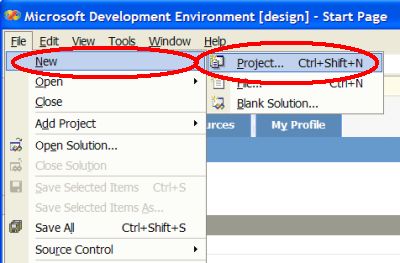
Go to New menu and click Project... to create new project as shown on screenshot below:

You will see New Project Wizard. Select Windows Application in Visual Basic Projects group:

2) VB.NET will create a new project:

3) To use Bytescout.PDF in Visual Basic.NET we have to add reference to Bytescout.PDF library for current VB.NET project. Select Project in the main menu and click Add Reference command:

Switch to Browse tab and find Bytescout.PDF.Demo.dll file (or Bytescout.PDF.dll if you have purchased full version already). Select this .NET library DLL file and add it as a reference to the project
4) Now add the code that will create "Hello, World!" PDF document. Double-click Form1 to create Form1_Load event procedure:

The source code editor window will be appear:

5) Add Imports Bytescout.PDF directive in the beginning of the code to use Bytescout.PDF namespace in the project
Source code to generate "Hello, World!" PDF document is below. Generated pdf document file will be saved into "HelloWorld.PDF" file. You can simply copy-and-paste this code into your project.
' Create main PDF Doc Engine
Dim engine As New PDFDocEngine("", "")
' Add new document
Dim document As Document = engine.AddDocument()
' Append new page to the document
Dim page As Page = document.AddPage(PageSizeType.A3, PageOrientationType.LandScape)
' Create new drawing
Dim drawing As Drawing = page.AddDrawing()
' Add standard font
Dim font As UInteger = document.AddFontStandard(StandardFontType.Courier, FontEncodingType.WinAnsi)
' Set Active Font
drawing.SetActiveFont(font, 50, False, False)
' Draw Text
drawing.PlaceText(100, 100, 0, "Hello World!")
' Closing drawing on the page
drawing.Close()
' Save document
document.Save("HelloWorld.pdf")
Dim engine As New PDFDocEngine("", "")
' Add new document
Dim document As Document = engine.AddDocument()
' Append new page to the document
Dim page As Page = document.AddPage(PageSizeType.A3, PageOrientationType.LandScape)
' Create new drawing
Dim drawing As Drawing = page.AddDrawing()
' Add standard font
Dim font As UInteger = document.AddFontStandard(StandardFontType.Courier, FontEncodingType.WinAnsi)
' Set Active Font
drawing.SetActiveFont(font, 50, False, False)
' Draw Text
drawing.PlaceText(100, 100, 0, "Hello World!")
' Closing drawing on the page
drawing.Close()
' Save document
document.Save("HelloWorld.pdf")
Hint:
You can simply copy the source code from the snippet above and paste into Visual Basic.NET code editor window:
6) Press F5 to run the application (you can also use "Debug" | "Start" menu command) and Visual Basic.NET will run the application:

The application will generate pdf document file and will save it as "HelloWorld.PDF" file in root folder of C:\ drive.
You can view generated PDF movie using Adobe Reader or another application that is able to open and display PDF documents.

You can download the source code of this example here: bytescoutpdf_vb_net.zip
Filed in:
PDF SDK for .NET
Tutorials: