- Home
- Testimonials
- Purchase
- Developer Tools
- Desktop Utilities
- Download
- Support
- Blog
- Company
How to add load text font from font name for use in PDF document made with Bytescout.PDF library for .NET
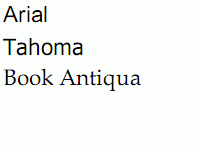
Adding font using its name into PDF document
This example demonstrates how to add and use text font using its name (the library looks for fonts installed in system, you can also load fonts from file - see sample) and use this font for text. You can also use built-in PDF fonts (see sample)

Download example source code: bytescoutpdf_fonts_from_font_name_non_standard_fonts.zip (25 KB)
using System;
using System.Collections.Generic;
using System.Text;
using Bytescout.PDF;
using System.Diagnostics;
namespace HelloWorld
{
class Program
{
static void Main(string[] args)
{
// Create main PDF Doc Engine
PDFDocEngine engine = new PDFDocEngine("", "");
// Add new document
Document document = engine.AddDocument();
// Append new page to the document
Page page = document.AddPage(PageSizeType.A3, PageOrientationType.LandScape);
// Create new drawing
Drawing drawing = page.AddDrawing();
// font size constant
const int fontSize = 50;
// Create array with font types
string[] fontNames = new string[] {
"Arial",
"Tahoma",
"Book Antiqua"
};
// X position of the text to draw
int textX = 10;
// Y position of the text to draw
int textY = 50;
// Draw all font types
foreach (string fontName in fontNames)
{
// Add standard font
uint font = document.AddFontTrueType(fontName, false, false);
// Set Active Font
drawing.SetActiveFont(font, fontSize, false, false);
// Draw Text
drawing.PlaceText(textX, textY, 0, fontName);
// Increase position of the next text
textY += fontSize + 20;
}
// Save document
document.Save("FontsFromFontName.pdf");
// open generated PDF document in default PDF viewer installed in Windows
Process.Start("FontsFromFontName.pdf");
}
}
}
Download example source code: bytescoutpdf_fonts_from_font_name_non_standard_fonts.zip (25 KB)
Filed in:
PDF SDK for .NET
Tutorials: