This sample code demonstrates how to transfer images from scanner or web-camera TWAIN and WIA devices with Bytescout Scan SDK for .NET. Full sample code is included into the SDK.
Screenshot of VB.NET test application:
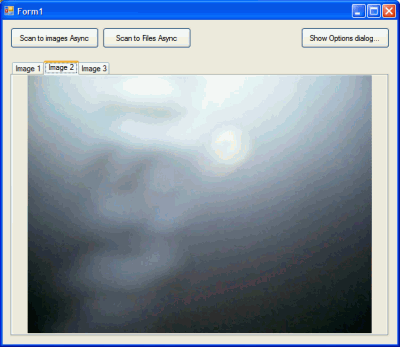
Imports System
Imports System.Collections
Imports System.ComponentModel
Imports System.Data

Imports System.Drawing
Imports System.Text
Imports System.Windows.Forms
Imports System.Drawing.Imaging

Imports Bytescout.Scan
Imports System.IO


Public Class Form1

    ' Starts Asynchronous scan into images. When scan is finished then scan_TransferFinished event is called and array with images objects is passed into this event
    Private Sub btnScanToImagesAsync_Click(ByVal sender As System.Object, ByVal e As System.EventArgs) Handles btnScanToImagesAsync.Click
        ' create new Scan object

        Dim scan As New Scan()

        ' set Scan object to save images into images array (will be passed as a paramtere in scan_TransferFinished event
        scan.SaveTo = SaveTo.ImageObject
        AddHandler scan.TransferFinished, AddressOf scan_TransferFinished

        ' set function for scan finished event to indicate when image transfer is finished

        ' see scan_TransferFinished event below
        ' acquire images
        scan.AcquireImagesAsync(Me.Handle)
    End Sub

    ' this event captures scanned images and fills images into tabs

    ' you can also iterate through scannedImages array to get each image as an Image object instead
    Private Sub scan_TransferFinished(ByVal sender As Scan, ByVal scannedImages As ArrayList)
        FillTabsWithImages(scannedImages)
    End Sub

    ' this function puts retrieved images objects into tabs on the form
    Private Sub FillTabsWithImages(ByVal images As ArrayList)
        tabControl1.TabPages.Clear()
        For i As Integer = 0 To images.Count - 1

            Dim page As New TabPage()

            Dim pb As New PictureBox()
            pb.Dock = DockStyle.Fill
            pb.SizeMode = PictureBoxSizeMode.Zoom

            If TypeOf images(i) Is Image Then

                page.Text = "Image " + (i + 1).ToString()
                pb.Image = DirectCast(images(i), Image)
            Else
                page.Text = DirectCast(images(i), String)
                pb.Image = Image.FromFile(DirectCast(images(i), String))
            End If

            page.Controls.Add(pb)

            tabControl1.TabPages.Add(page)
        Next
    End Sub

    ' acquire images into files automatically saved into the given folder with given image format and filename
    Private Sub btnScanToFilesAsync_Click(ByVal sender As System.Object, ByVal e As System.EventArgs) Handles btnScanToFilesAsync.Click
        ' create new Scan object

        Dim scan As New Scan()

        ' set SDK to save images into files
        scan.SaveTo = SaveTo.File
        ' scan.FileNamingTemplate = "ScannedImage_{0:D2}"; // you can set output filename template
        ' set output format as JPG image format

        scan.OutputFormat = OutputFormat.JPEG
        AddHandler scan.TransferFinished, AddressOf scan_TransferFinished

        ' you can set output folder as well, by default output folder is the same where executable .exe is running
        'scan.OutputFolder = Path.GetTempPath();


        ' assign the event to indicate when image transfer is finished

        ' acquire images
        scan.AcquireImagesAsync(Me.Handle)
    End Sub

    ' displays ready-to-use options dialog for the scan SDK
    Private Sub btnOptions_Click(ByVal sender As System.Object, ByVal e As System.EventArgs) Handles btnOptions.Click
        Scan.ShowOptionsDialog(New Scan())
    End Sub

End Class



 Important Update